Maguuma: Thug Life: [DERP][ME][PYRO] and other assorted dead guilds.
Trading Post wont open
Bump.
1st time I log in I can access the TP. As soon as I change maps or enter wvw I cannot unless I exit to desktop.
Maguuma: Thug Life: [DERP][ME][PYRO] and other assorted dead guilds.
First:
- Close your game completely.
- Ensure your game is set to Run As Administrator in the shortcut’s Properties > Compatibility tab.
- Then re-launch and see if the issue persists.
If the issue still occurs:
Clear the game cache
In addition to ‘Running As Administrator’ helping with many issues other than just the TP, most TP-specific issues are primarily related to some temporary GW2 files where removing them will allow them to be recreated and the TP to function properly again.
The quickest way to clear the GW2 Cache is to:
- Ensure your game is completely closed.
- Hold your “Windows Key” and press “F” to open Windows Search on your computer.
- Search for “gw2cache”
- It will find a folder called “gw2cache-{bunch-of-letters-and-numbers}” at:
“C:\Users\YourComputerUserName\AppData\Local\Temp” - Delete this “gw2cache-{bunch-of-letters-and-numbers}” folder that is shown in the results.
- Load up your game normally and your TP should now function properly.
If your search for “gw2cache” does not produce the folder I mentioned, then you will need to enable hidden files and folders in order to delete this cache folder.
Make hidden files visible and clear the game cache
- Close your game completely.
- Browse your My Computer to: “C:\Users\YourComputerUserName”
- Then in the window menus, click on “Tools” then “Folder Options…”
- In the window that pops up, click the “View” tab
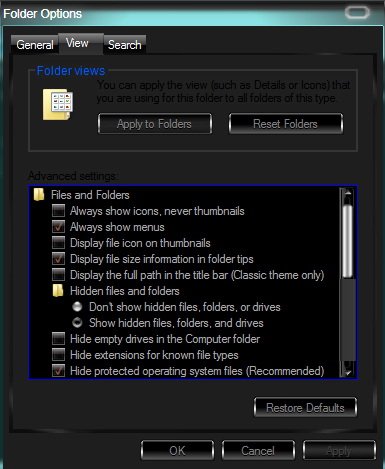
- Select to “Show hidden files, folders and drives” and click ‘OK’ (attached image #1)
- You should now see a folder in your file listing called “AppData”, open this folder
- Inside that folder open the “Local” folder
- Inside that folder open the “Temp” folder
- You should now see a folder called “gw2cache-{bunch-of-letters-and-numbers}”. Delete this gw2cache folder.
- Load up your game normally and see if the issue is fixed.
—note—
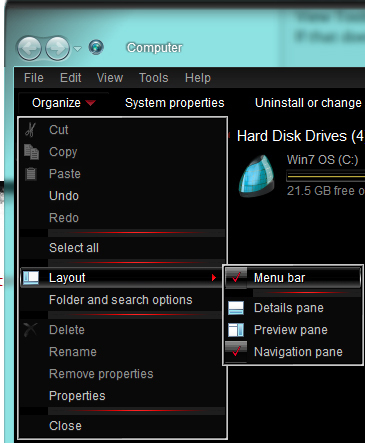
By “window menus” I mean up at the top of the window where it says “File Edit View Tools Help”. If that bar does not display in your window for you along the top, then click the drop-down arrow next to the word “Organize” and then click on “Layout” and select “Menu bar” to enable showing of the menus (attached image #2).
Another way to do Steps 3, 4 and 5 to make hidden folders visible is:
- Click your Start menu and then open Control Panel
- In your Control Panel, if items are sorted by “Category” then select “Appearance and Personalization” on the right side, then in the second bottom area under “Folder Options” click on “Show hidden files and folders”. This will open the same options dialogue box shown in attached image #1.
- Otherwise, if Control Panel is sorted by Icons, simply click on “Folder Options” from the list to bring up the options dialogue box shown in attached image #1.
Attachments:
| [“I’d really like this…” — Resource for Gifting Strangers] |
| [Free Ports For All “Not So Secret” JP Needs (and 1st Try Dive Tips)] |
| [Classic Thread: “all is vain”] |
| [Free Ports For All “Not So Secret” JP Needs (and 1st Try Dive Tips)] |
| [Classic Thread: “all is vain”] |
That did it! Appreciate your assistance friend!
Maguuma: Thug Life: [DERP][ME][PYRO] and other assorted dead guilds.
Very glad to have helped out!
| [“I’d really like this…” — Resource for Gifting Strangers] |
| [Free Ports For All “Not So Secret” JP Needs (and 1st Try Dive Tips)] |
| [Classic Thread: “all is vain”] |
| [Free Ports For All “Not So Secret” JP Needs (and 1st Try Dive Tips)] |
| [Classic Thread: “all is vain”] |
BUMP
Unfortunately the problem is back. Deleting said cache doesnt work. Running as admin doesnt work. TP will open upon logging into the game. After a map switch or initial opening it won’t.
Maguuma: Thug Life: [DERP][ME][PYRO] and other assorted dead guilds.
Hey again. Um, let’s see. Are you using any command line arguments added onto the ‘target’ line of your game shortcut’s properties?
Do you have any programs running that could be interfering? Do you use Mumble, MSI Afterburner, MOG Music Service or anything that has an overlay on your screen?
| [“I’d really like this…” — Resource for Gifting Strangers] |
| [Free Ports For All “Not So Secret” JP Needs (and 1st Try Dive Tips)] |
| [Classic Thread: “all is vain”] |
| [Free Ports For All “Not So Secret” JP Needs (and 1st Try Dive Tips)] |
| [Classic Thread: “all is vain”] |
No and no.
I thought perhaps downloading the client again would solve the issue but alas it hasn’t. I’m at a loss. Its getting to the point where its interfering severly with my experience.
Maguuma: Thug Life: [DERP][ME][PYRO] and other assorted dead guilds.