Showing Posts For MVPatski.1346:
The power behind it is more than enough to run it on the highest settings :P
That’s really well put together!
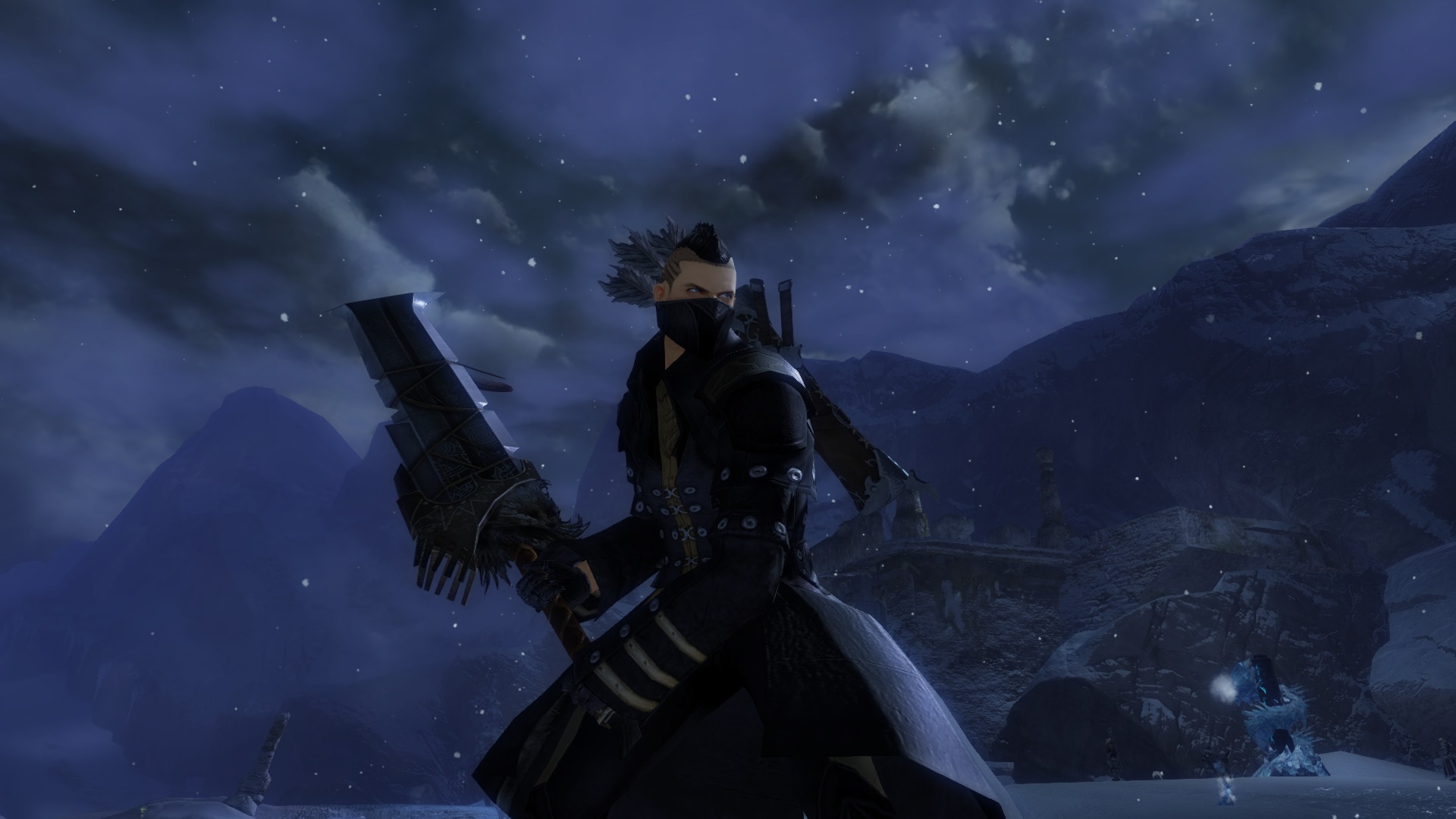
My Ranger – Vector V.
Proudly sporting his new quiver and Abyss dye
Attachments:
Necro’s.. Couldn’t help but match my rig to my wallpaper and character I’m currently playing.
For those of you that are curious;
Alienware M17xR4
Intel® Core™ i7-3740QM CPU
32GB RAM
NVIDIA GeForce GTX 680M
1TB HD
1920 × 1080 Native 3D Enabled
Sound Blaster Recon3Di
Killer Wireless-N 1103 Bluetooth & Gaming
Plantronics GameCom 780 Head Phones
Razer Lachesis Mouse
<3
Attachments:

(edited by MVPatski.1346)
Bumping for potential solution if others are having the same issue
This issue is now resolved, thanks to the super fast help of the ArenaNet support team!
For anybody else having this issue, it may be a potential corruption of your Winsock (a technical specification that defines how Windows network software should access network services, especially TCP/IP) and it requires a reset.
To do this, follow the below steps;
1. Click the “Start” button to bring up the Start Menu.
2. Type in CMD into the “Search programs and files” field but do not hit enter. Doing this will change your start menu to show the program “cmd.exe.”
3. Right-click on “cmd.exe” and select “Run as Administrator.”
4. Type “netsh winsock reset” without the quotes. When the command is completed successfully, a confirmation appears, followed by a new command prompt line.
5. You should be told to restart your computer.
Once completed, please try connecting again.
This information came from the support staff, so I hope this helps out anybody else that’s stuck in this situation
Hello
I purchased the ‘Guild Wars 2 Digital Deluxe’ edition today and downloaded the Windows installer. I then continued to run the downloaded file and received the “Download failed! Please check your Internet connection and try again.” error.
I have been browsing the forums for hours trying to get this thing to work, and am literally pulling my hair out.
I’ve done everything that has been suggested in this and other forums to no avail.
I have;
- Turned off my Windows Firewall
- Turned off Avast firewall (I do not use AVG)
- Disabled UAC
- Made sure my Internet connection is actually working
- Ran the ‘Gw2Setup.exe’ as administrator
- Right clicked, hit properties and ‘Unblocked’ the file
- Even went to the extent of uninstalling my anti-virus protection
- Checked my Temp files, and moved ‘Gw2.exe’, ‘Gw2.dat’ and ‘Gw2.tmp’ to a solid file
- Attempted rename & repair (-repair) ‘Gw2.exe’
- Flushed my DNS
- Deleted ‘Local.dat’ from the Guild Wars 2 File in my Documents
- Deleted Guild Wars 2 File from My Documents
- Tried running through a VPN (HSS)
- Restarted my computer several times
- Tried zerO’s MSCONFIG service method
- Tried -useoldlauncher method
I’m sure I have done a few more things, I just can’t remember.
I don’t have any issues downloading and updating files for other games like Diablo III and such, I wouldn’t have the slightest clue as to why this isn’t working for me.
I am using Windows Vista, a wireless modem and meet all the games required specs.
Is anybody able to help me out here? I’m at a TOTAL loss!
Cheers!
(edited by MVPatski.1346)