Showing Posts For killer.8746:
I posted a solution for amd users down the bottom of my forum site that should work out with the custom resolution and window mode togeather
Try it with amd catalyst control center see how it goes with the window mode & custom resolution bit 1 – Right click the desktop and open the AMD Catalyst/Vision Control Center.
2 – In the upper-right corner, select “preferences”. Make sure “Advanced View” is
selected.
3 – From the tabs on the left-hand side, select “My Digital Flat-Panels.”
4 – From the list that drops down, select "HDTV Support (Digital Flat-Panel).
5 – There should be a list of “HDTV modes supported by this display.” Choose the one relative to your monitor’s native specifications. Since my monitor’s native specs are 1920×1080 @60hz, I choose “Add 1080p60 format to Display Manager (NTSC).”
6 – Click the green apply button.
If you now see one or two resolutions listed in the “Predefined and Custom HDTV Formats” section, you may be ready to go. Open the game and see if your native resolution is now listed.
If you’re still not seeing anything, or if you’d like to add a new resolution, continue on.
7 – You should now be able to click the “Add” button next to the list of “Predefined and Custom HDTV Formats.” Go ahead and click it.
8 – From here, you can create a custom resolution. When you’re done, click accept.
9 – Click the green apply button again.
Last whole step is navigate to your Guild Wars 2 folder. By default, this will be C:\Program Files(x86)\Guild Wars 2.
Right-click on “GW2.exe” and select “Create Shortcut.”
Rename this shortcut to “Guild Wars 2 Windowed.”
Right-click on this shortcut and select “Properties.”
Edit the “Target” line to include -windowed at the end. Note: Please make sure -windowed is outside of the quotes -- Correctly Formatted Example: " C:\Program Files (x86)\Guild Wars 2\GW2.exe" -windowed -- Incorrectly Formatted Example: " C:\Program Files (x86)\Guild Wars 2\GW2.exe -windowed "
Once completed, click “Ok” to save your changes.
If you get an error trying to save, your target line may not have the correct format. Please try Step 5 again.
(edited by killer.8746)
Trust me it will fix it my Bf told me this solution
Here go here for the solution for black screen with sounds in background this is what fixed it for me https://forum-en.gw2archive.eu/forum/support/bugs/Black-Screen-Solution/first#post5982607
First, please navigate to your Guild Wars 2 folder. By default, this will be C:\Program Files(x86)\Guild Wars 2.
Right-click on “GW2.exe” and select “Create Shortcut.”
Rename this shortcut to “Guild Wars 2 Windowed.”
Right-click on this shortcut and select “Properties.”
Edit the “Target” line to include -windowed at the end. Note: Please make sure -windowed is outside of the quotes -- Correctly Formatted Example: " C:\Program Files (x86)\Guild Wars 2\GW2.exe" -windowed -- Incorrectly Formatted Example: " C:\Program Files (x86)\Guild Wars 2\GW2.exe -windowed "
Once completed, click “Ok” to save your changes.
If you get an error trying to save, your target line may not have the correct format. Please try Step 5 again.
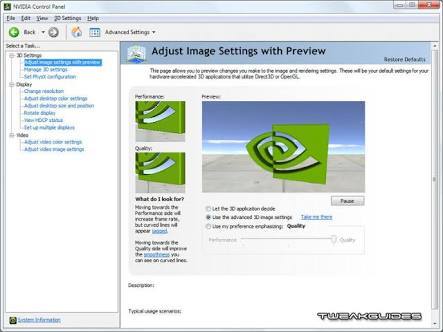
Last thing to do after you make guild wars 2 into window mode is to make a custom resolution in nivida control panel under display click on change resolution and after that click customize make the resolution 1920×1079 make it 60HZ click apply and ok and go back into guild wars 2 run as administrator and set it to that resolution.
This is a Solution for Nivida users up the top here down the bottom of the page there’s a solution for amd users.
Attachments:


(edited by killer.8746)